Windows Installation Guide
Download and install AI电脑管家 on Windows.
System Requirements
- Operating System: Windows 10/11 (x64)
- Disk Space: At least 10GB free space on the C drive
- Network: Internet connection required for AI model services
⚠️ Windows 10 users: Windows 10 enforces a maximum path length of 260 characters by default, which can cause the installation to be incomplete or fail to start. We recommend enabling long path support before installing.
Before Installing: Disable Security Software
⚠️ Important: Complete this step before downloading or installing. Security software can block the installer or cause an incomplete installation.
During installation, AI电脑管家 extracts a number of binary files. Security software can mistakenly flag this process, causing the extraction to fail or produce incomplete files. Please temporarily disable the following before installing:
Windows Defender (Windows Security)
Open Windows Security → Virus & threat protection → Manage settings and temporarily turn off Real-time protection.
Windows Smart App Control (Windows 11)
Smart App Control in Windows 11 can block apps that aren't signed by Microsoft. To disable it: open Windows Security → App & browser control → Smart App Control and set it to Off.
Note: Once Smart App Control is turned off, it cannot be re-enabled without resetting your PC. If you'd prefer not to disable it permanently, you can try running the installer as Administrator or adding it to the allowlist instead.
Third-party antivirus software
If you have antivirus software such as Avast, Kaspersky, Norton, or similar, temporarily exit or disable real-time protection for the duration of the installation.
You can re-enable all security protection after installation is complete.
Download & Install
- Visit the AI电脑管家 website to download the latest installer
- Run the downloaded installer and follow the setup wizard
- Once installed, launch AI电脑管家
Handling Security Blocks: Browser or System Blocks the Installer
If you haven't disabled security software beforehand, you may encounter the following prompts during download and installation.
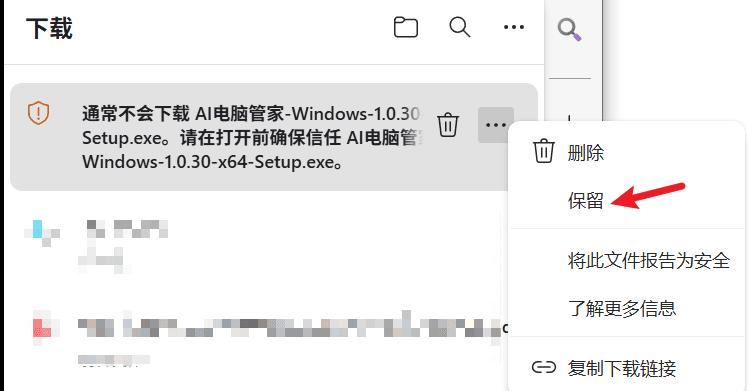
Browser blocks the download
Your browser may warn that the file "is not commonly downloaded". Click Keep from the menu to continue:
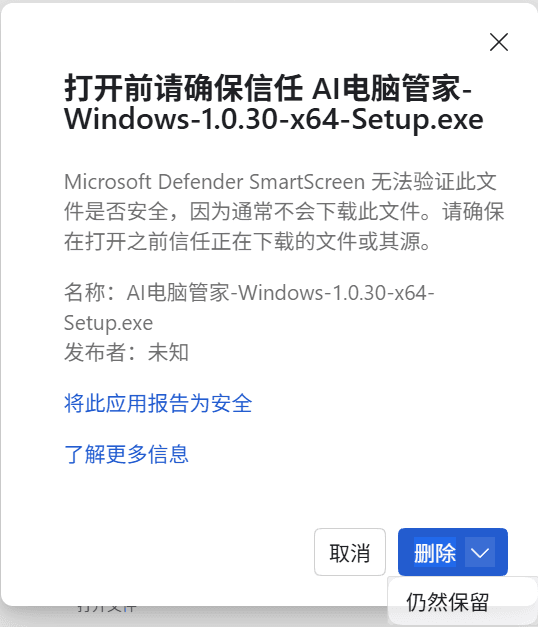
If a secondary confirmation dialog appears, click Keep anyway:
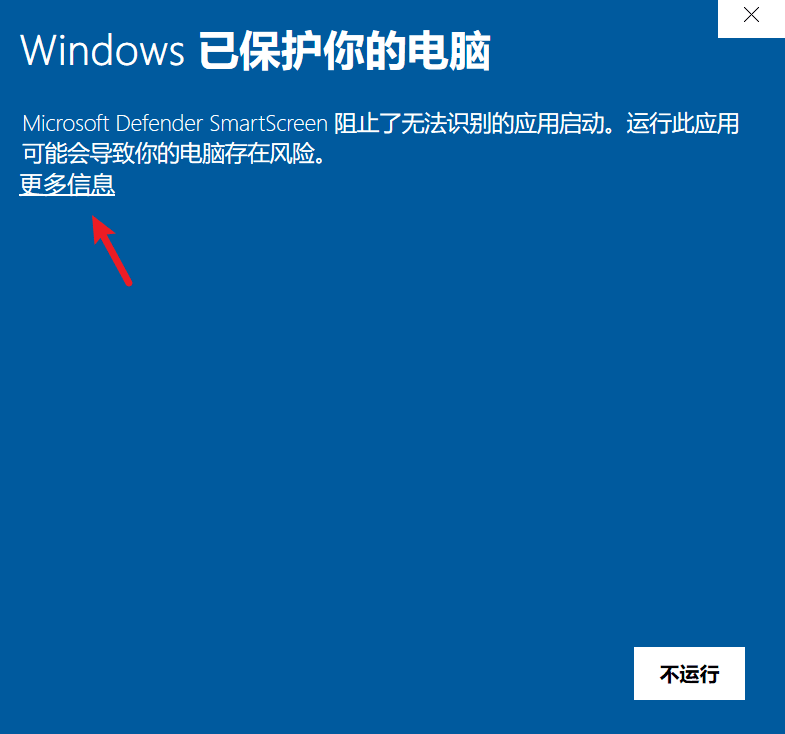
Windows SmartScreen blocks the installer
When running the installer, if you see a blue "Windows protected your PC" dialog, click More info first:
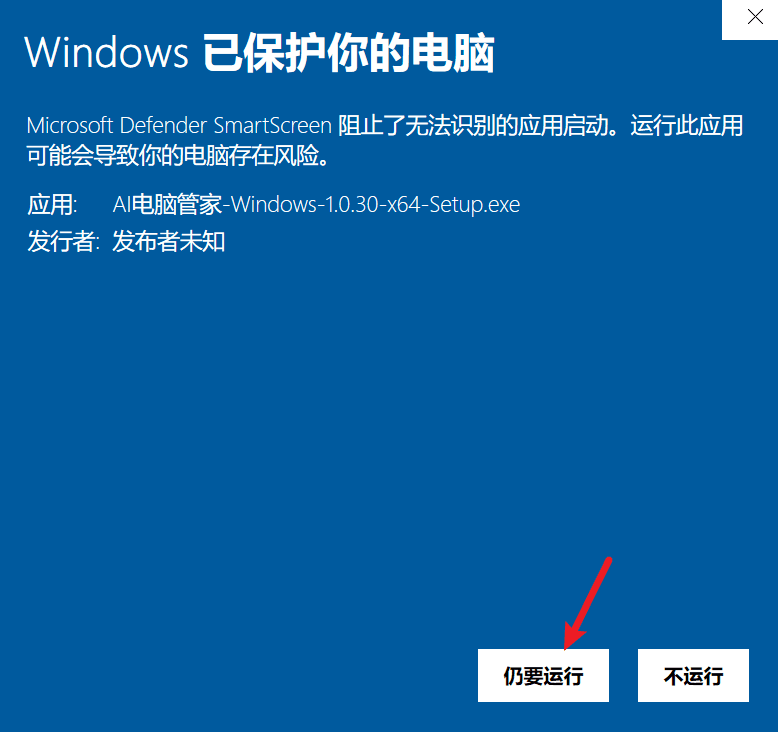
Then click Run anyway to proceed with the installation:
Next Step
After installation, head to Setup Models to configure an AI model and start using the app.