WeChat Assistant
Control your computer remotely via WeChat ClawBot — send a message, get things done.
WinClaw lets you chat directly with your computer's AI assistant through WeChat. Download the tool, install, scan the QR code, and you're all set!
Why WeChat?
WeChat is the app most people open dozens of times a day. No new software to install, no new accounts to remember, no new interfaces to learn. Open WeChat, find ClawBot, send a message, and things start getting done.
The web console at winclaw.cn is already quite capable, but it has always lacked a notification feature. WeChat fills this gap — results are pushed directly to your WeChat when tasks are completed. Of course, if you prefer not to use the web at all, WeChat works perfectly fine as your primary entry point.
Three-Step Setup
The entire setup takes less than five minutes.
Step 1: Install agent_wechat
Open WinClaw (requires version 1.0.46 or later), go to Tool Management, switch to the Tool Store tab, and search for wechat.
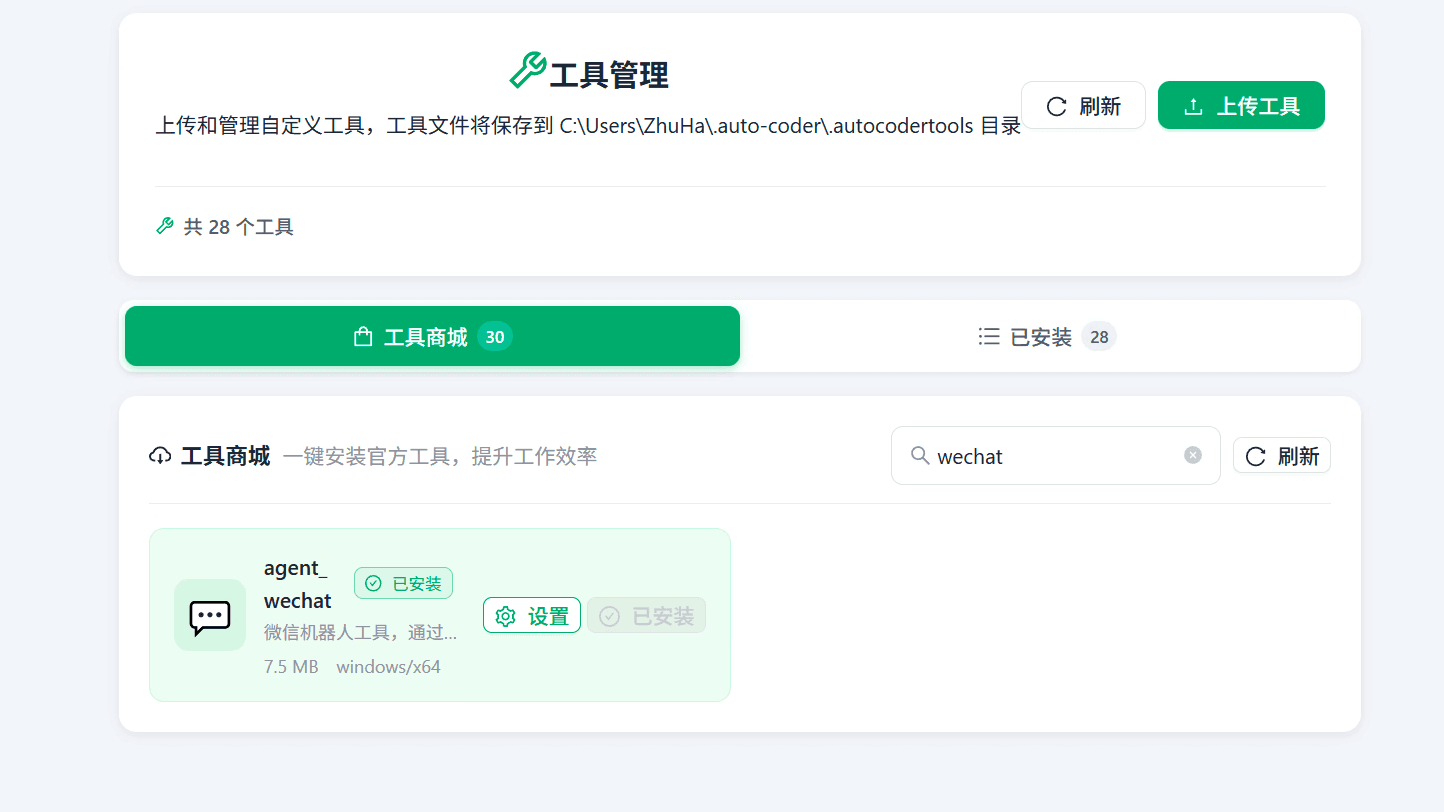
Find agent_wechat and click install. Once installed, it shows "Installed" and you can go straight to settings.
Like all WinClaw tools, agent_wechat comes from the official Tool Store with security review.
Step 2: Start the WeChat Assistant Service
In the Installed list, find agent_wechat and click Settings.
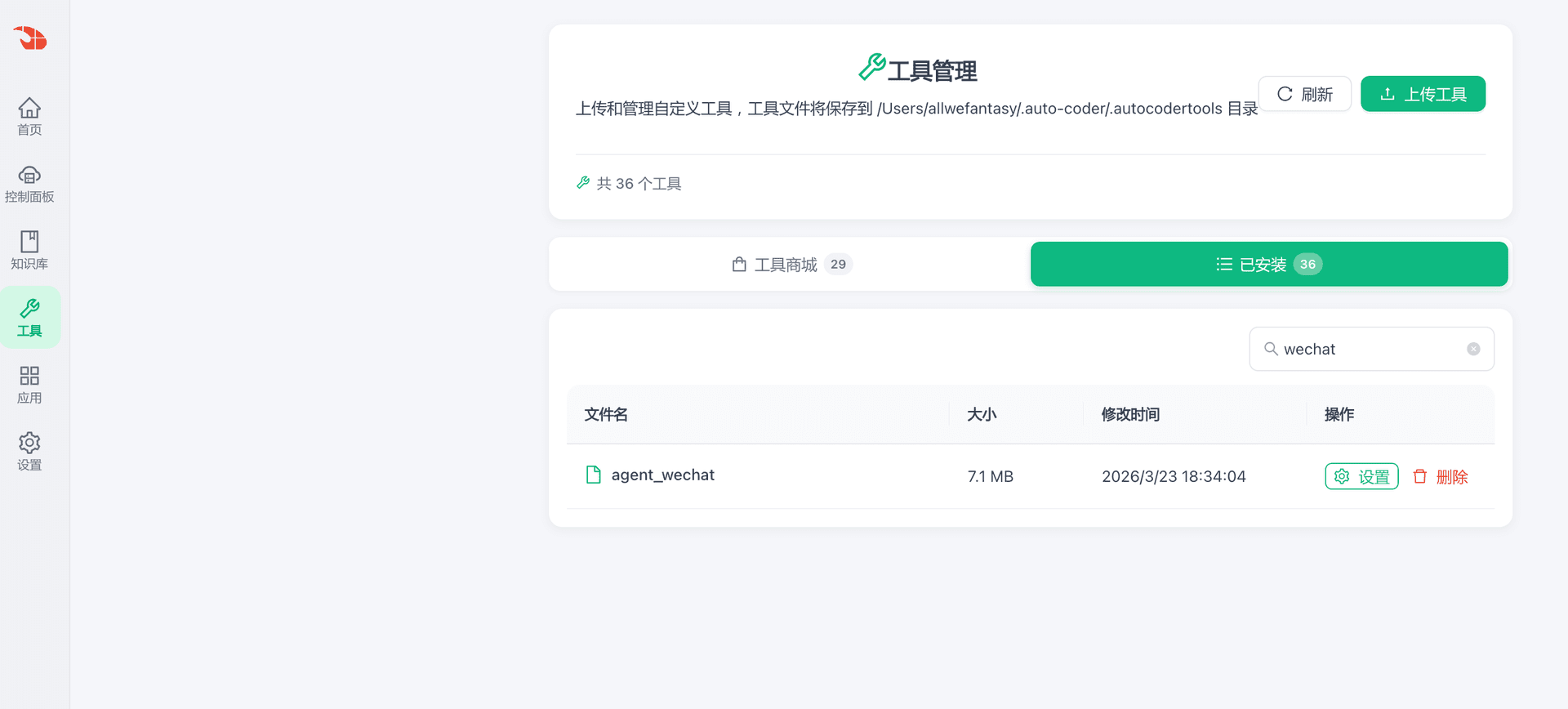
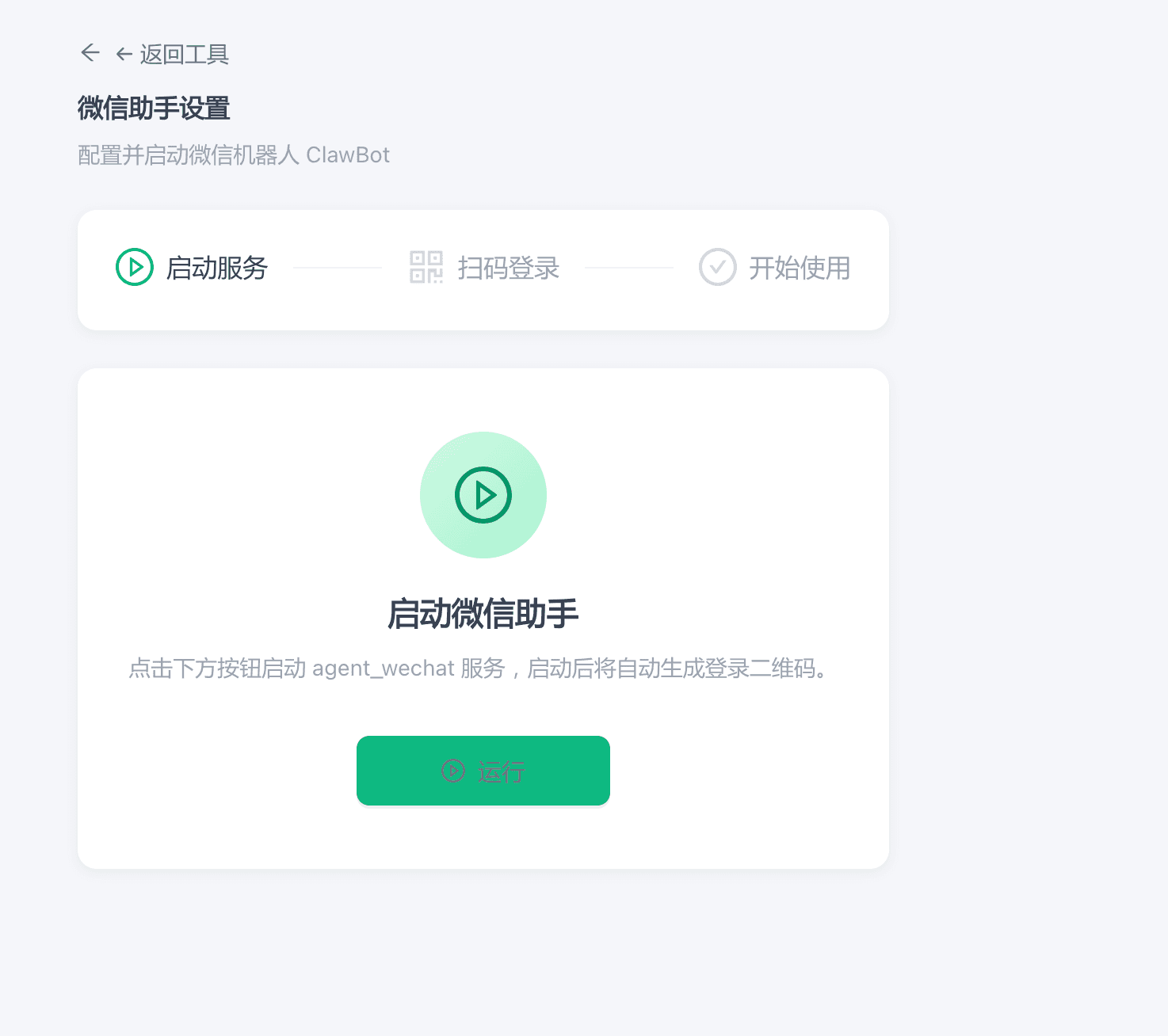
On the WeChat Assistant settings page, click the green Run button to start the agent_wechat service. A login QR code will be generated automatically.
Step 3: Scan QR Code to Log In
After the service starts, the page automatically enters the QR code login step.
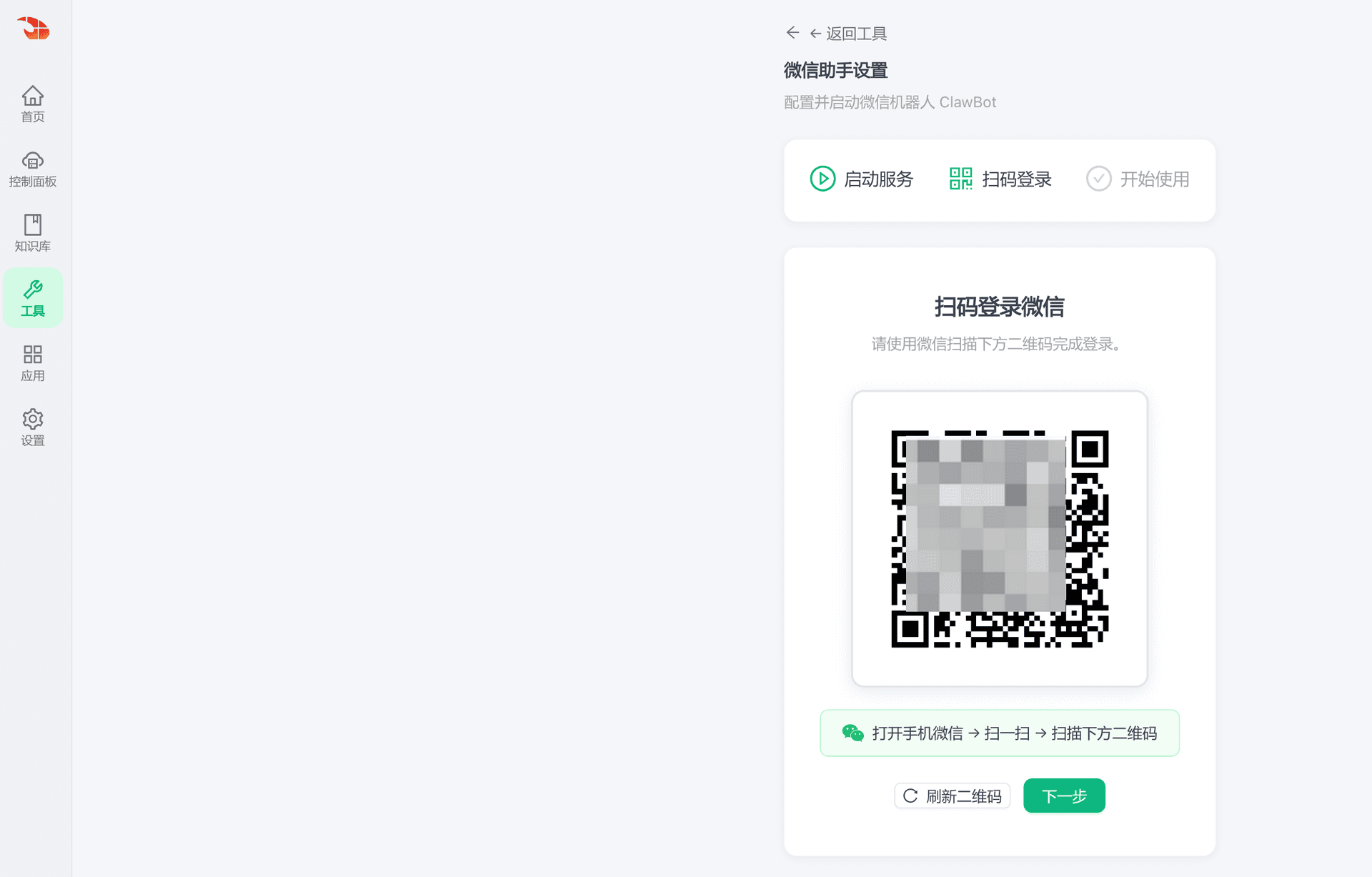
Open WeChat on your phone and use the scan feature to scan the QR code. If the QR code has expired, click Refresh QR Code to get a new one.
After confirming the scan, a conversation named "WeChat ClawBot" appears in your WeChat. From this moment on, you can chat with WinClaw on your computer directly through WeChat.
If WeChat was already logged in on this computer and the scan page keeps spinning when you open it again, it usually means the service is already working:
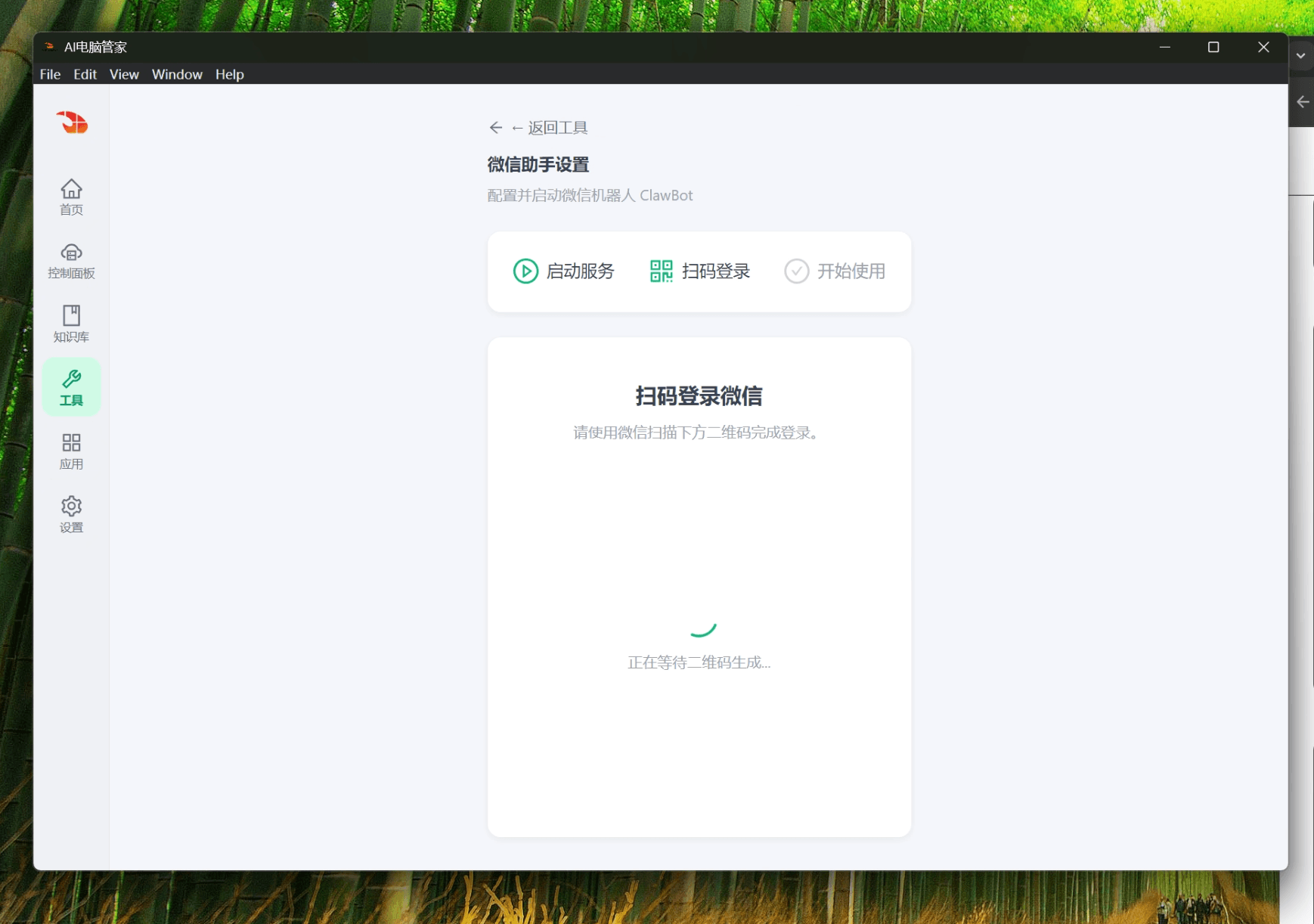
In this case, go back to the tool list, open Settings again, then click Check Status. If it shows running, you can continue using it directly.
Manual Setup (Command Line)
After installing agent_wechat, you can also start, check status, and stop the service from the command line.
macOS / Linux
~/.auto-coder/.autocodertools/agent_wechat start
~/.auto-coder/.autocodertools/agent_wechat status
~/.auto-coder/.autocodertools/agent_wechat stop
Note: the status command is
status, notstauts.
Windows (PowerShell or CMD)
%USERPROFILE%\.auto-coder\.autocodertools\agent_wechat.exe start
%USERPROFILE%\.auto-coder\.autocodertools\agent_wechat.exe status
%USERPROFILE%\.auto-coder\.autocodertools\agent_wechat.exe stop
Update agent_wechat
When a new version of agent_wechat is released, you need to update it manually. Follow these steps:
Step 1: Stop the Current Service
macOS / Linux
~/.auto-coder/.autocodertools/agent_wechat stop
Windows (PowerShell or CMD)
%USERPROFILE%\.auto-coder\.autocodertools\agent_wechat.exe stop
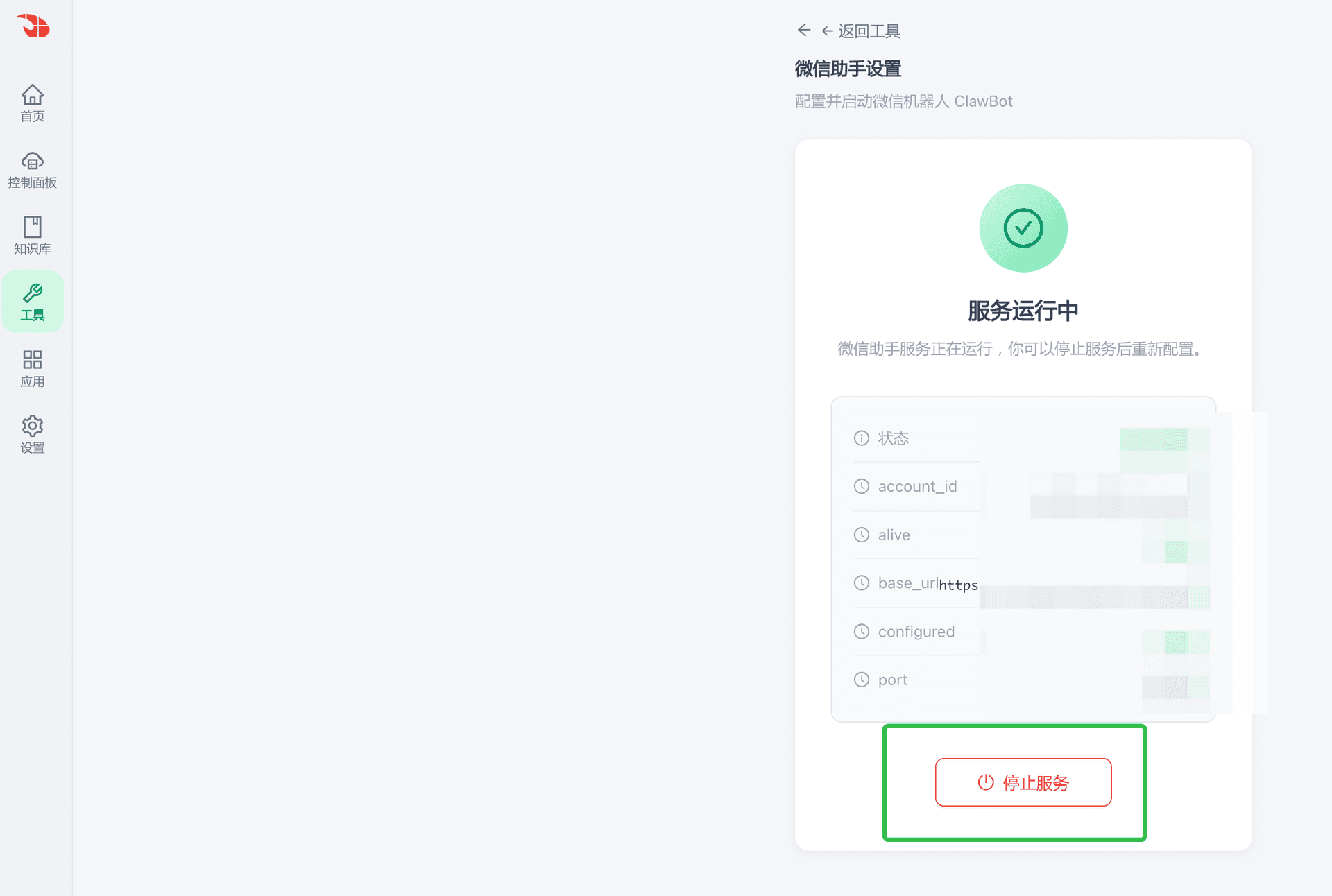
You can also stop the service from the WinClaw UI: open the agent_wechat Settings page and click Stop Service.
Step 2: Delete the Old Version
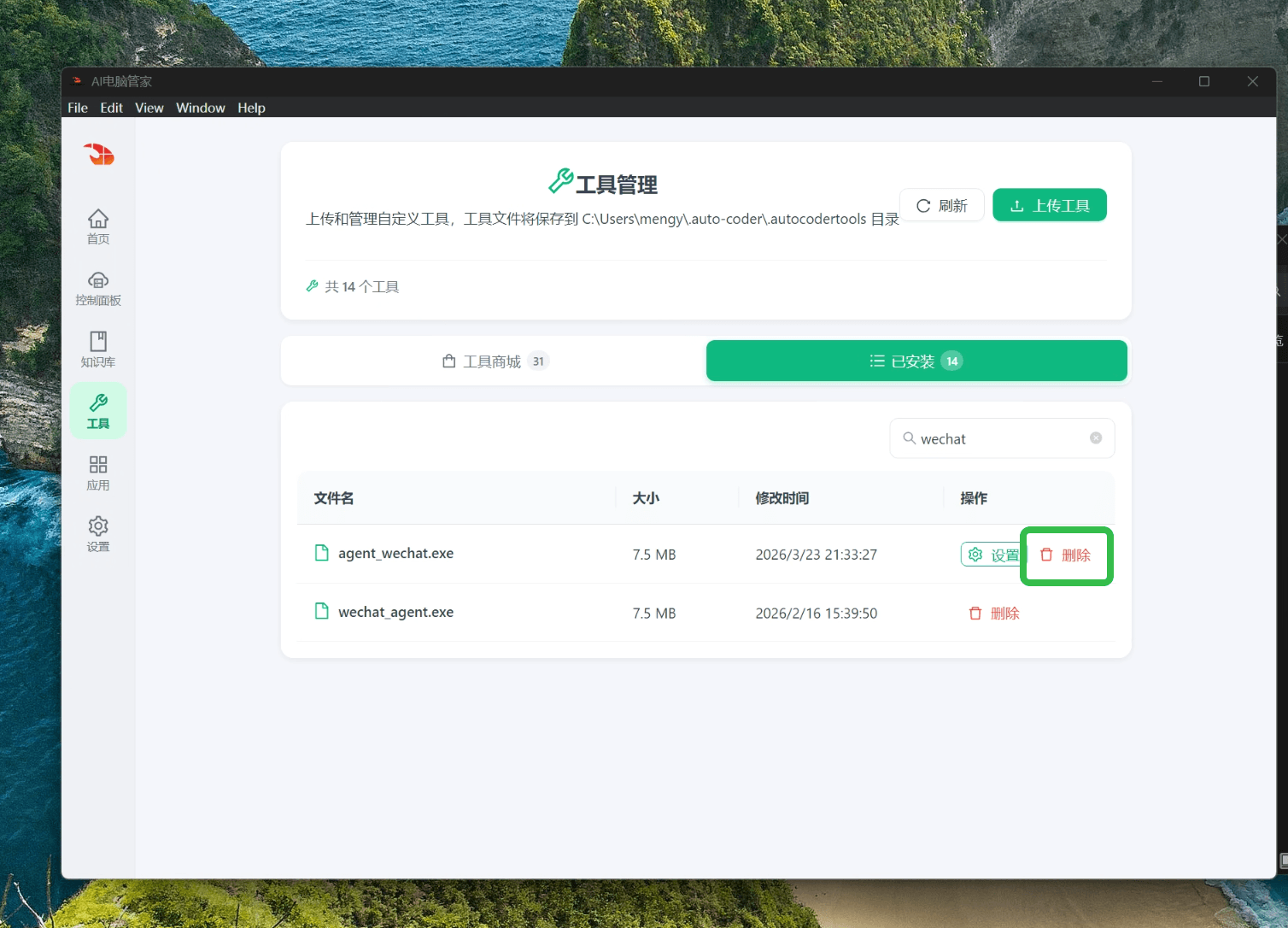
Open WinClaw, go to Tools → Tool Management, click Installed, find agent_wechat, and click Delete.
Step 3: Reinstall
After deletion, switch to the Tool Store tab, search for wechat, download and install agent_wechat again, then follow the Three-Step Setup process above to complete the configuration.
Test External Task Support
You can quickly verify whether your current WinClaw build supports external tasks by calling the local external tasks API.
Windows CMD
curl -X POST http://127.0.0.1:9199/api/external/tasks/stream ^
  -H "Content-Type: application/json" ^
  -N ^
  -d "{\"engine\":\"pc_manager\",\"config_id\":\"default\",\"prompt\":\"你好,请介绍一下你自己\",\"metadata\":{\"source\":\"agent_wechat\",\"conversation_id\":\"user-001\"}}"
macOS / Linux
curl -X POST http://127.0.0.1:9199/api/external/tasks/stream \
  -H "Content-Type: application/json" \
  -N \
  -d '{
    "engine": "pc_manager",
    "config_id": "default",
    "prompt": "你刚才说了什么?",
    "topic_id": "topic-abc123",
    "conversation_id": "conv-xyz789",
    "metadata": {
      "source": "agent_wechat",
      "conversation_id": "user-001"
    }
  }'
If the interface returns streaming output continuously (SSE), external task support is working. If it errors immediately or returns nothing, make sure WinClaw is running and port 9199 is reachable.
View Tasks from WeChat
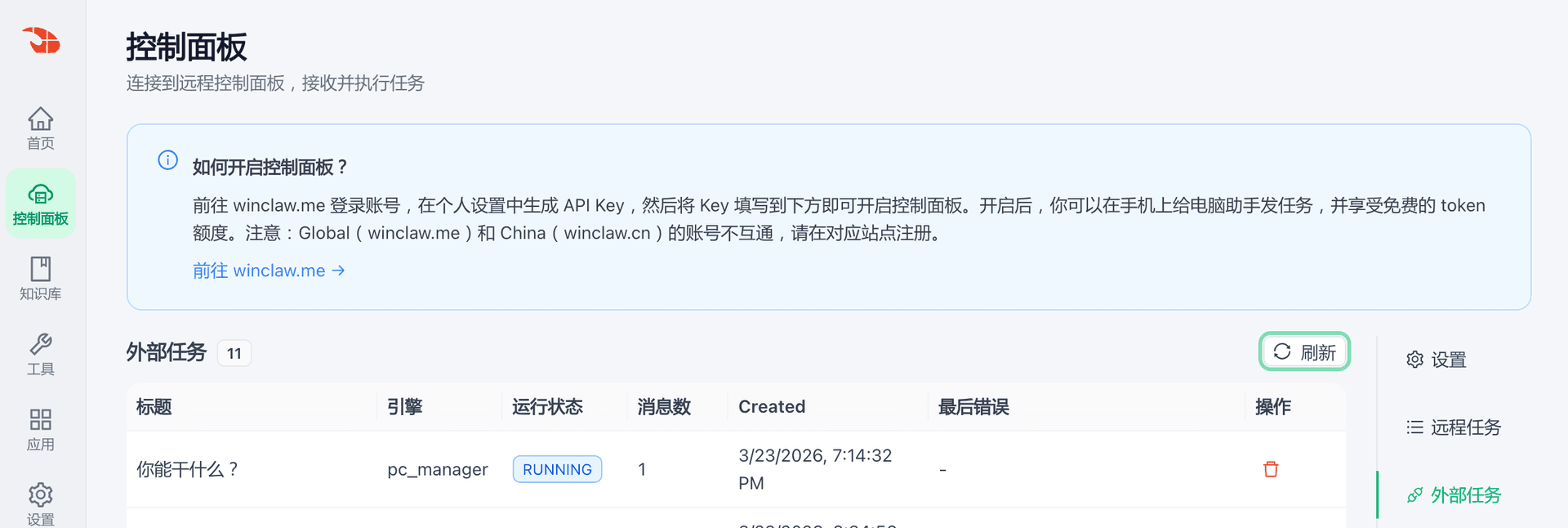
In WinClaw's Control Panel → External Tasks, you can see messages sent from WeChat and the task execution status.
Start Using
After setup is complete, open WeChat, find ClawBot, and try sending "What can you do?"
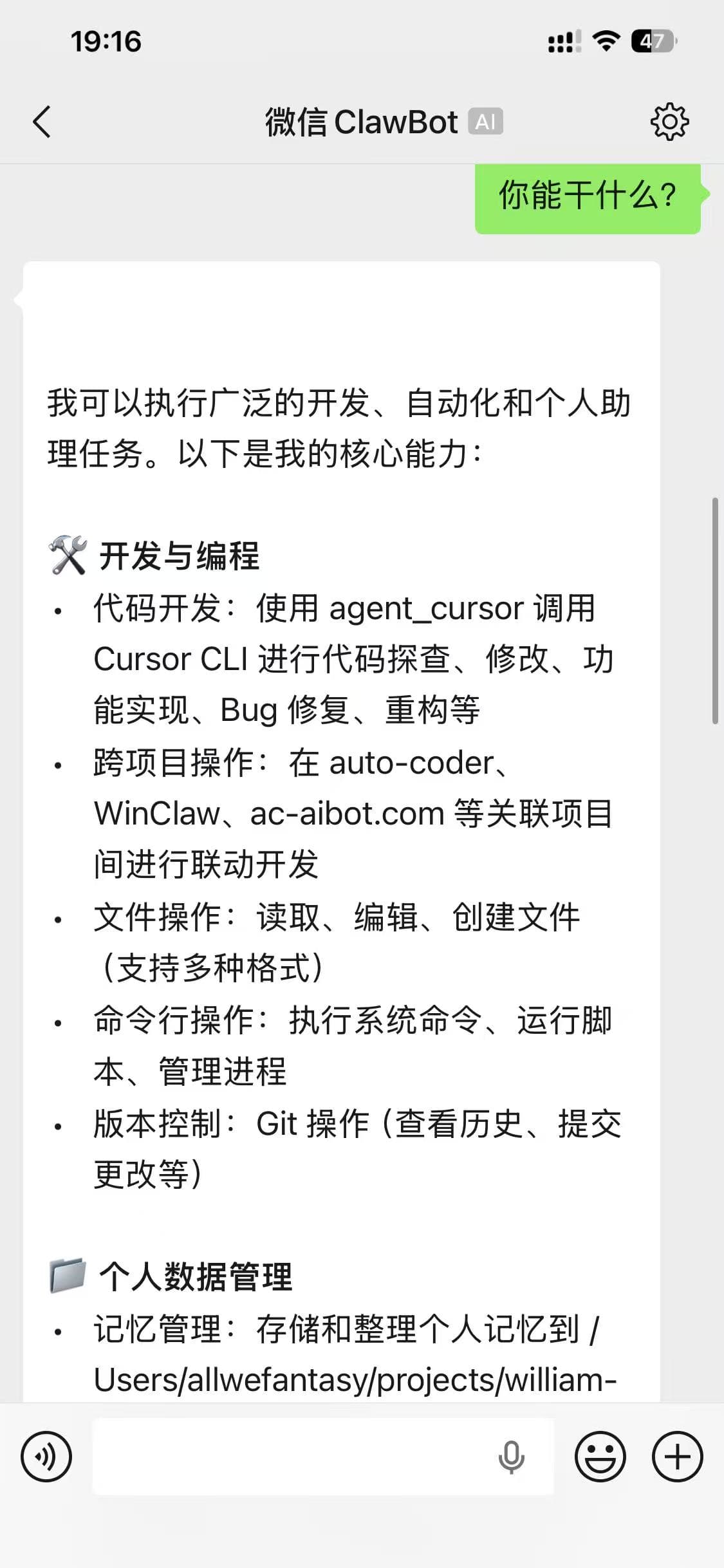
ClawBot will reply with its full list of capabilities:
- Code Development — Use Cursor CLI for code exploration, modification, bug fixes, refactoring
- Cross-Project Operations — Coordinate development across multiple related projects
- File Operations — Read, edit, and create files
- Command Line Control — Execute system commands, run scripts, manage processes
- Version Control — Git operations, view history, commit changes
- Personal Data Management — Store and organize personal memories
The ClawBot in WeChat is the same WinClaw running on your computer — all capabilities can be triggered with a single message.
Start a New Session: /clear
If you want to reset the current context and start a fresh task, send this command to ClawBot in WeChat:
/clear
After sending it, a new session starts. This is useful when switching to a very different task, when the chat gets too long, or when responses begin to drift.
Use Cases
| Scenario | Without WeChat Assistant | With WeChat Assistant |
|---|---|---|
| Forgot to commit code while commuting | Wait until you're at the office | Send "commit today's code changes" in WeChat |
| Need to look up data during a meeting | Wait until the meeting is over | Send "check last week's sales summary" in WeChat |
| Want your computer to run a script while out | Struggle with remote desktop | Send "run the data cleaning script" in WeChat |
| Need a file's content urgently | Go home and turn on the computer | Send "send me the README" in WeChat |
Security
| Security Measure | Description |
|---|---|
| Official Tool Store | agent_wechat comes from the official Tool Store with security review, not a third-party source |
| WeChat Binding | QR code login binds to your personal WeChat — only your account can send commands to ClawBot |
| Local Execution | All tasks execute on your local computer — data never passes through third-party servers |
FAQ
ClawBot not responding in WeChat?
- Check if the
agent_wechatservice is running - Verify your computer has a working network connection
- Try restarting the
agent_wechatservice in WinClaw
QR code scan login failed?
- Make sure you're scanning with your own WeChat account
- If the QR code has expired, click "Refresh QR Code" to get a new one
- Check your phone's network connection
What's the difference between WeChat Assistant and Remote Control?
Both allow you to control your computer remotely. WeChat Assistant works through WeChat messages, making it more convenient for everyday use with built-in notifications; Remote Control uses a browser-based console with additional features like voice input and scheduled tasks. You can use both at the same time.