macOS Installation Guide
Download and install AI电脑管家 on macOS.
System Requirements
- Operating System: macOS (Apple Silicon / Intel)
- Disk Space: At least 10GB free space
- Network: Internet connection required for AI model services
Download & Install
- Visit the AI电脑管家 website to download the macOS installer
- Open the downloaded
.dmgfile and drag AI电脑管家 into the Applications folder - Launch AI电脑管家
If macOS says the app is damaged or is not allowed to run, run the following command in Terminal:
sudo xattr -rd com.apple.quarantine /Applications/AI电脑管家.app
Then open AI电脑管家 again.
Handling Security Blocks: Manually Allow AI电脑管家
Since AI电脑管家 is not yet notarized by Apple, macOS may block it on first launch with a security warning:
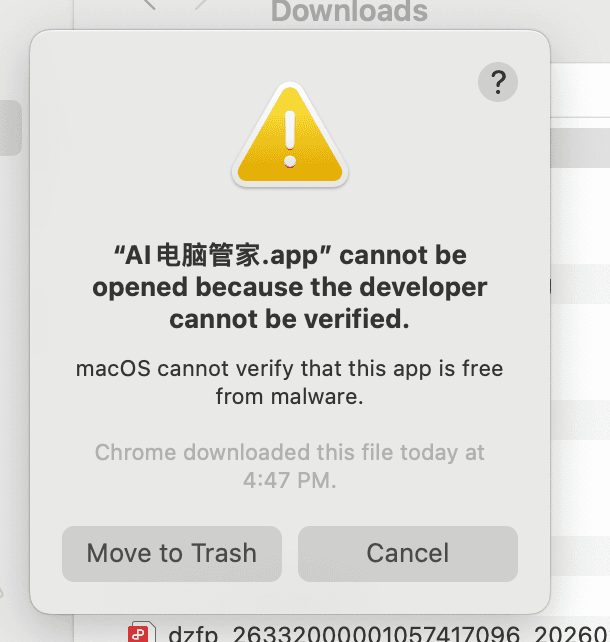
When you see this dialog, do not click "Move to Trash". Instead, follow these steps to manually allow it:
- Open System Settings → Privacy & Security
- Under the "Security" section, you'll see a message saying
"AI电脑管家.app" was blocked from use because it is not from an identified developer - Click the Open Anyway button
- A confirmation dialog will appear — use Touch ID or enter your password to confirm
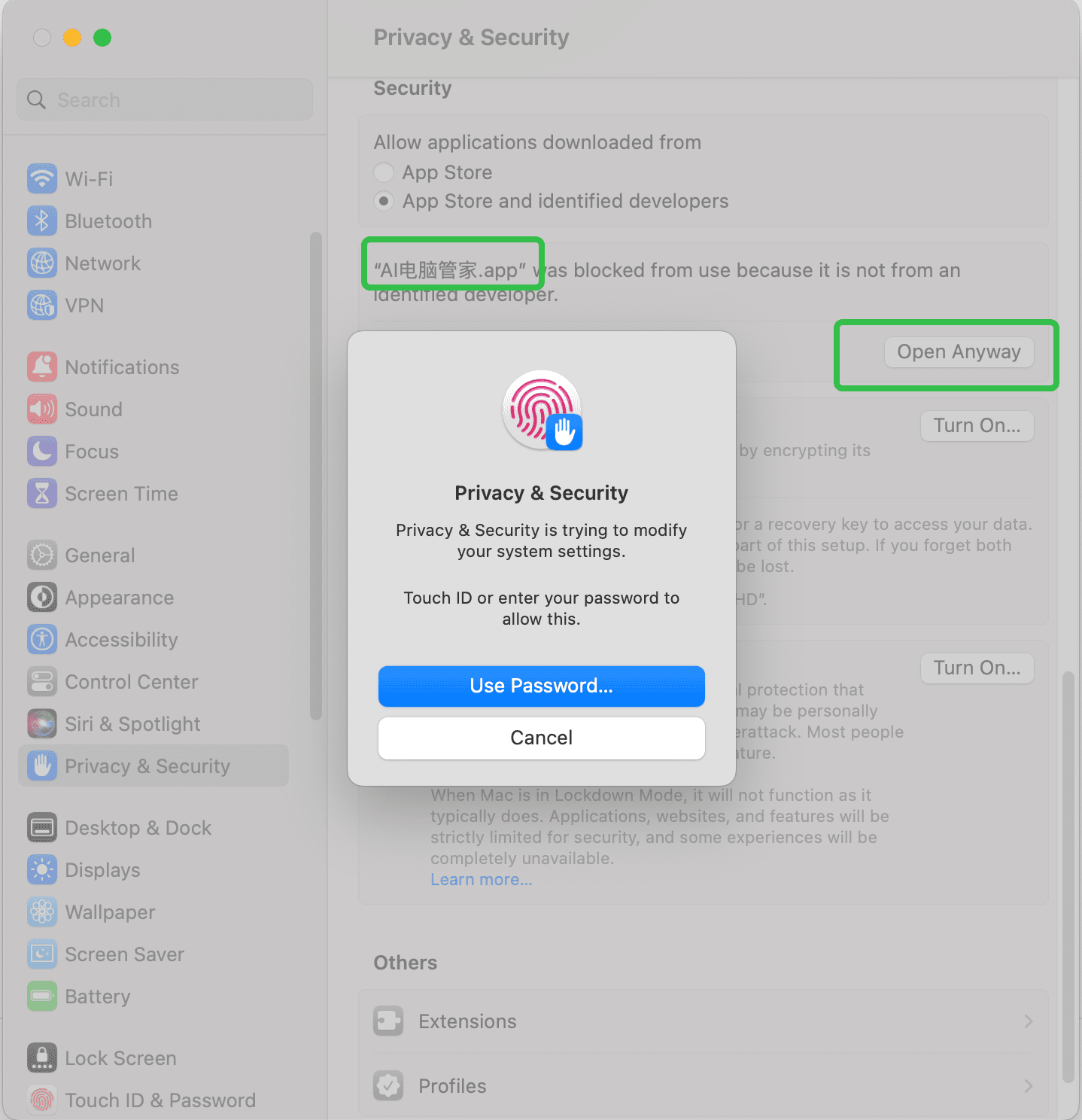
After completing these steps, AI电脑管家 will launch and work normally.
If You Still Have Problems After the Steps Above
If AI电脑管家 still does not open after completing the steps above, you can use Terminal to remove the quarantine attribute and add execute permission manually.
First, open Terminal:
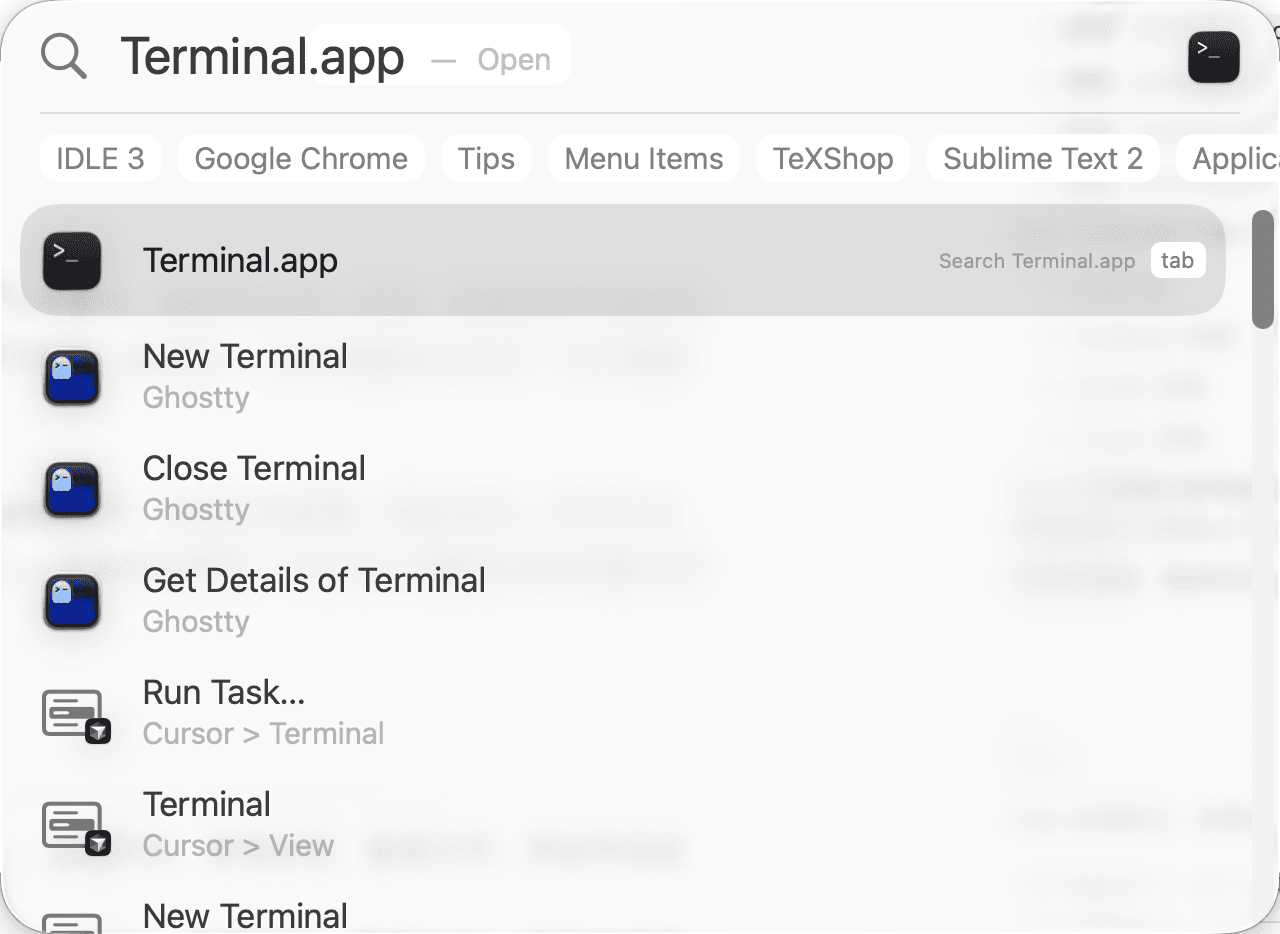
Fastest Method
If the app is installed in the default /Applications folder, you can directly copy and run this command:
sudo xattr -rd com.apple.quarantine /Applications/AI电脑管家.app
After the command finishes, right-click AI电脑管家.app and choose Open again. In most cases, this is enough.
Fallback Method: Drag the App to Fill in the Path
If the quick command above does not apply, or your app is not in the default location, follow these steps:
- In Terminal, type
sudo xattr -rd com.apple.quarantinewith a trailing space, and do not press Enter yet - Drag the AI电脑管家.app icon from Finder into the Terminal window so macOS fills in the full app path automatically
- Press Enter, type your macOS login password, and press Enter again
- Then type
chmod +x, again keeping a trailing space - Drag AI电脑管家.app into Terminal once more, then press Enter to run the command
- After both commands finish, close Terminal, then right-click the app and choose Open again
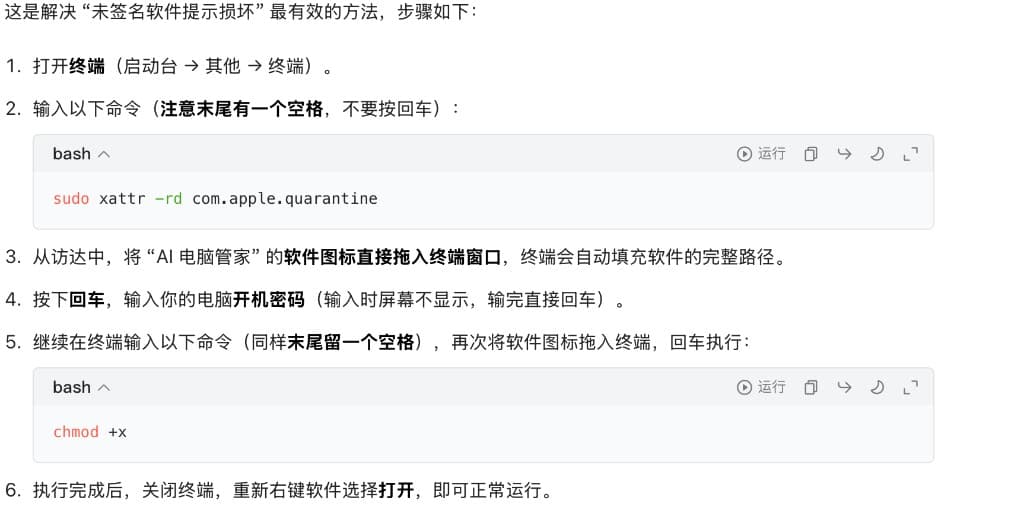
After these steps, the app should usually open normally.
Next Step
After installation, head to Setup Models to configure an AI model and start using the app.