Personalized Communication
Guide your AI assistant with custom rules to handle tasks better, following your habits and preferences.
WinClaw provides a rule management feature that lets you create custom rules for the AI assistant to follow automatically in every conversation. Think of it as writing a "playbook" for the AI, so it better understands your needs.
What Are Rules
Rules are a set of instructions or conventions you write for the AI, such as:
- What checks to perform before using a specific tool
- How to handle certain situations
- Your preferences and habits
The AI will automatically read these rules at the start of each conversation and follow them when executing tasks.
Create a Rule
- Click the Settings icon in the left navigation bar
- Select the Rule Management tab
- Click the + New Rule button
- Fill in the rule details:
- File Name: Give the rule a meaningful name (e.g., "Browser Tips")
- AI Must Read: When enabled, the AI will automatically read this rule in every conversation
- Content: Write the specific rule content
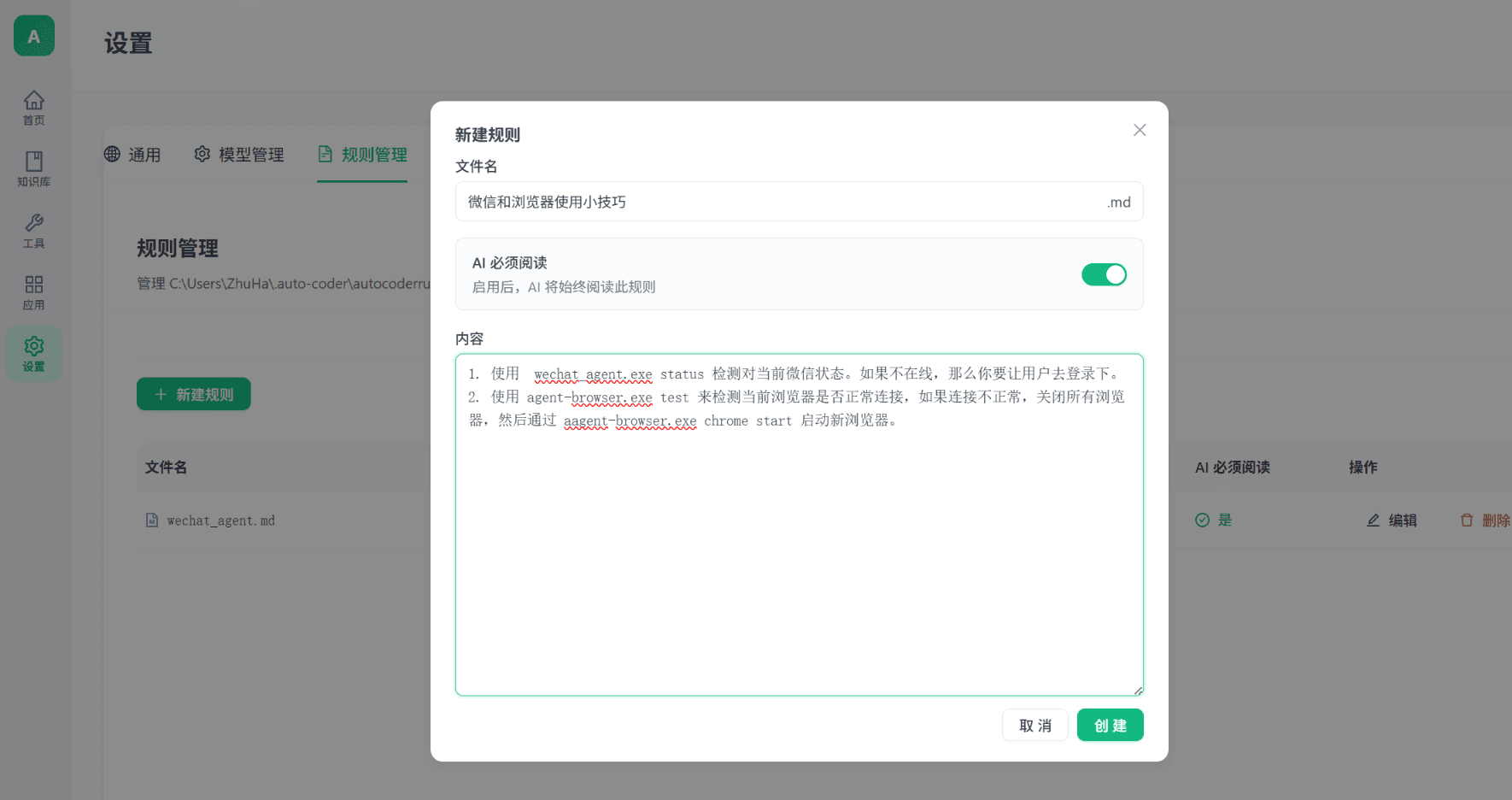
- Click Create to save the rule
Rule Examples
Example: Browser Tips
Here's a practical rule example that helps the AI be smarter when using browser tools:
1. Use agent-browser.exe test to check if the browser connection is working. If the connection is not working, close all browsers and start a new one with agent-browser.exe chrome start.
2. After opening a webpage, wait for the page to fully load before performing any actions.
With this rule in place, the AI will automatically check service status before executing browser tasks, without you having to remind it every time.
Example: Daily Work Preferences
1. Always respond in Chinese.
2. After opening a webpage, take a screenshot for my confirmation before proceeding.
3. Before performing file operations, confirm the target path and filename.
Example: Specific Task Workflows
1. When searching for information, get results from at least 3 different websites.
2. If a task fails, automatically retry once before reporting the error.
3. When generating reports, automatically save them in markdown format.
Manage Existing Rules
On the Rule Management page, you can manage your created rules:
| Action | Description |
|---|---|
| AI Must Read | Control whether the AI automatically loads this rule |
| Edit | Modify the rule content |
| Delete | Remove rules you no longer need |
Tips
- Be specific: The more specific your rules are, the more accurately the AI will follow them. Avoid vague descriptions and write clear action steps instead
- Group by scenario: Create separate rule files for different use cases, such as "Browser Rules", "Office Rules", "Work Habits", etc.
- Keep them updated: As your usage habits change, remember to update your rules accordingly
- Disable instead of delete: If you temporarily don't need a rule, toggle off "AI Must Read" instead of deleting it